You just downloaded Sequorr — now it’s time to track your first activity. This guide walks you through starting, tracking, and saving a session entirely inside the app. No smartwatch, no third-party account, no HealthKit sync required — just your phone.
You can pair a Bluetooth heart-rate monitor if you have one, but it’s completely optional. Here’s how to record your first session, start to finish.
Step 1 · Pair a heart-rate monitor (optional)
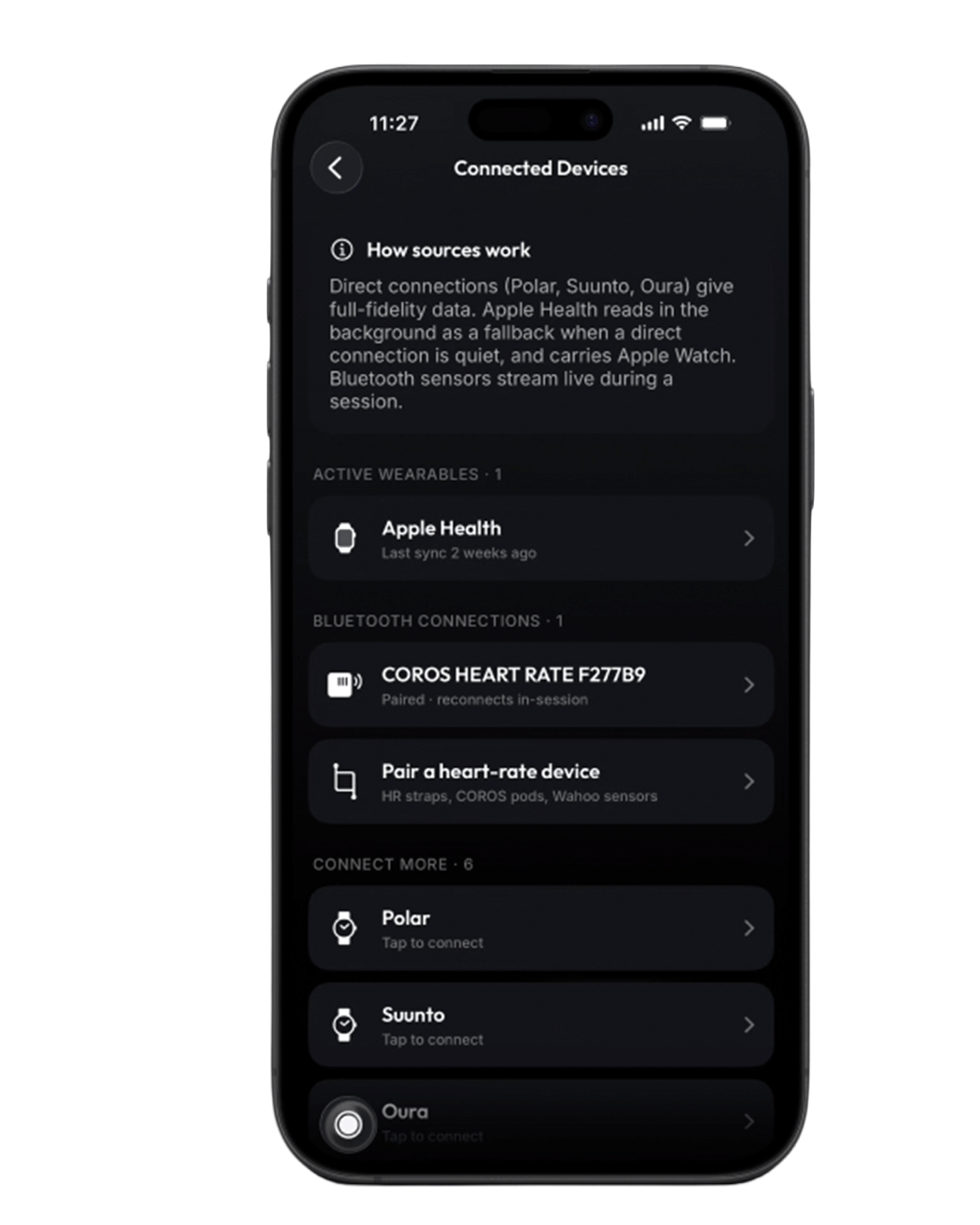
Open Sequorr to the Activity screen. If you’d like to capture heart rate during your session, pair a monitor now: scroll down to Connected Devices, tap Pair a heart-rate device, and select yours. Prefer to keep it simple? Skip this step — you can always track without one.
Step 2 · Start a new activity
Back on the Activity screen, tap the + button in the top-right corner. A menu drops down with activity types — pick the one that matches what you’re doing, indoor or outdoor.
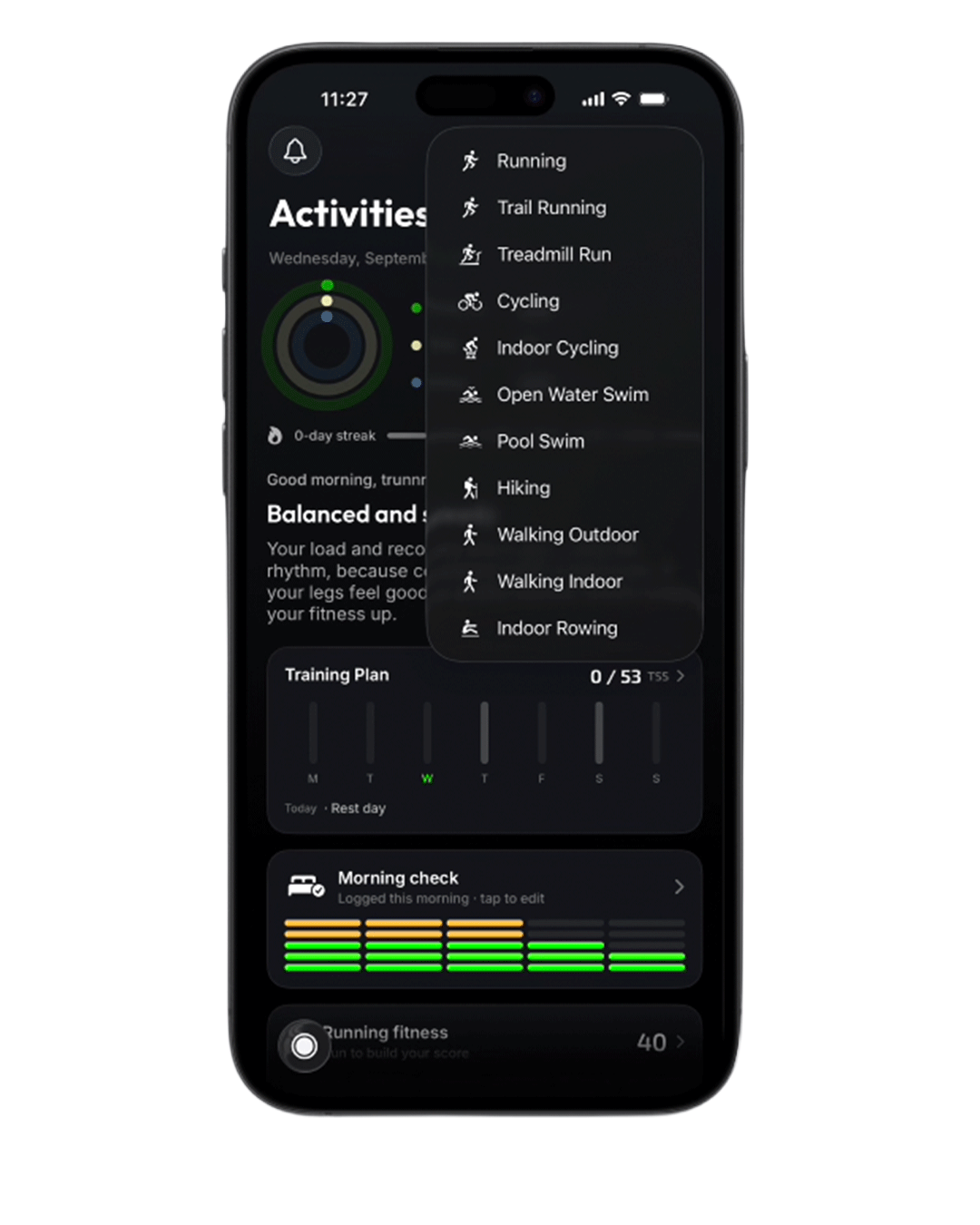
Step 3 · Get your bearings on the tracking screen
Once you choose a type, the live map opens with a Start button at the bottom. Just above it are three quick-view tabs you can swipe between:
- Duration, distance, pace, and average pace
- Heart rate, calories, ascent, and steps
- Your connected heart-rate monitor from Step 1
You can also cycle through different map styles while you’re here — see our guide to Sequorr map styles.
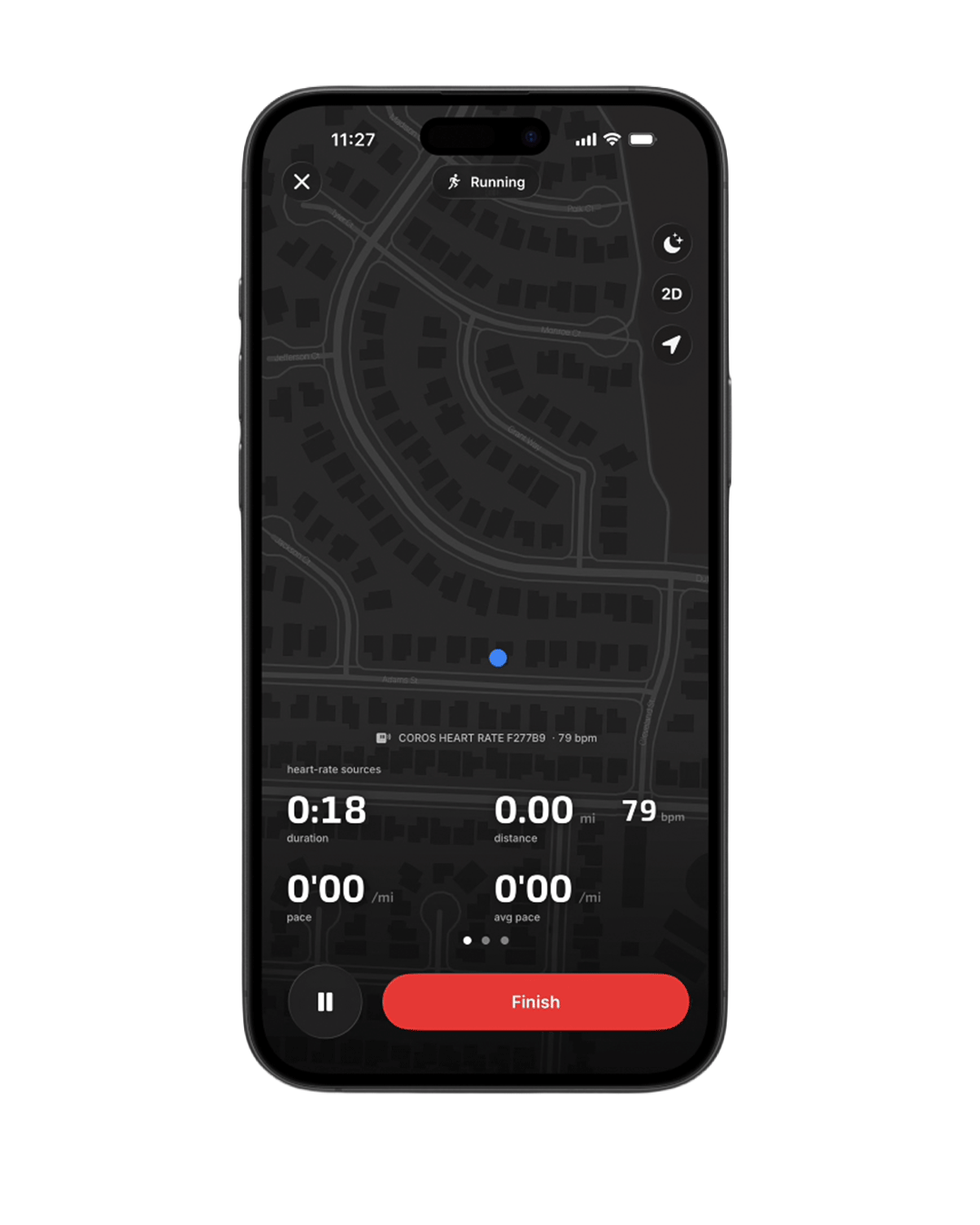
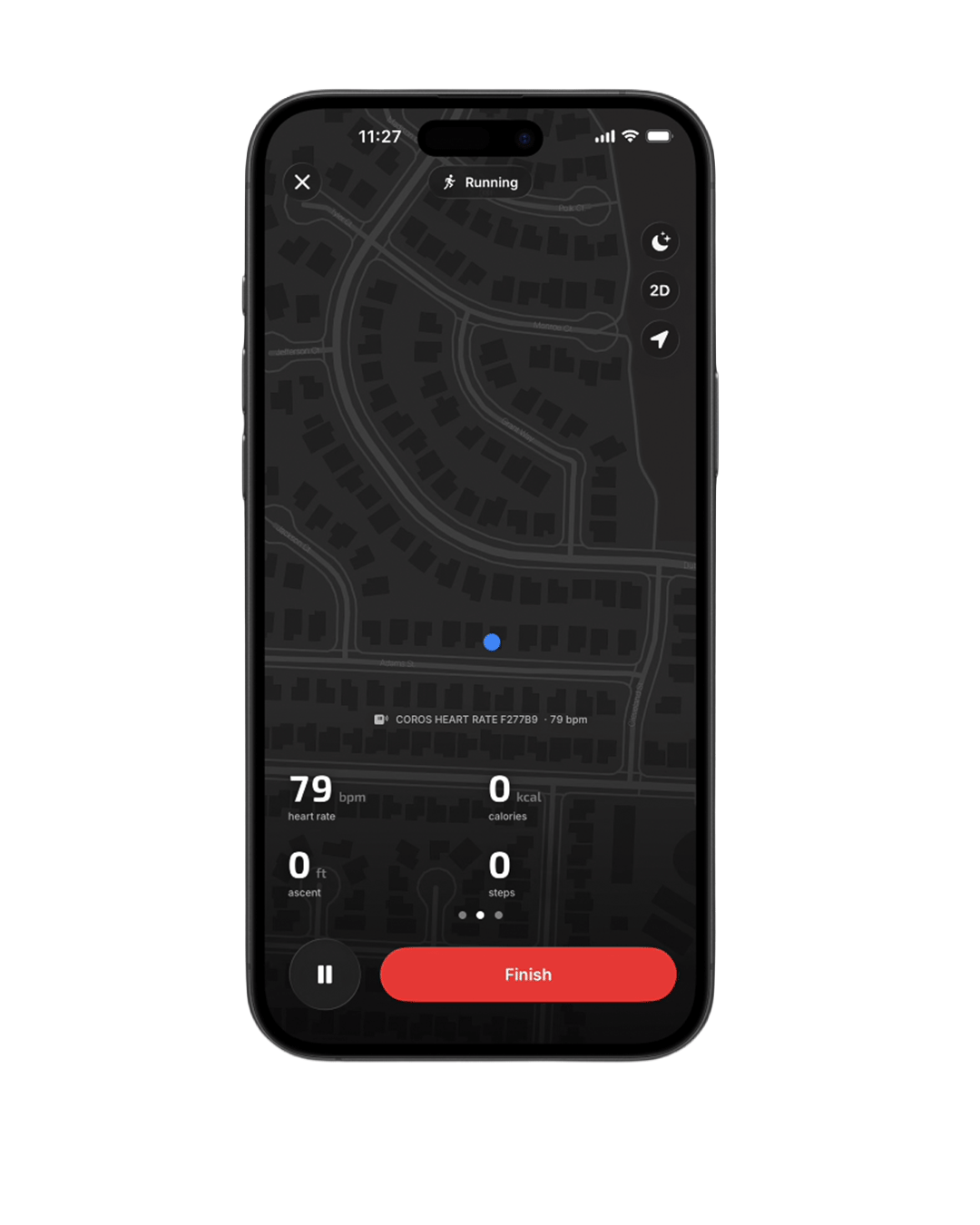
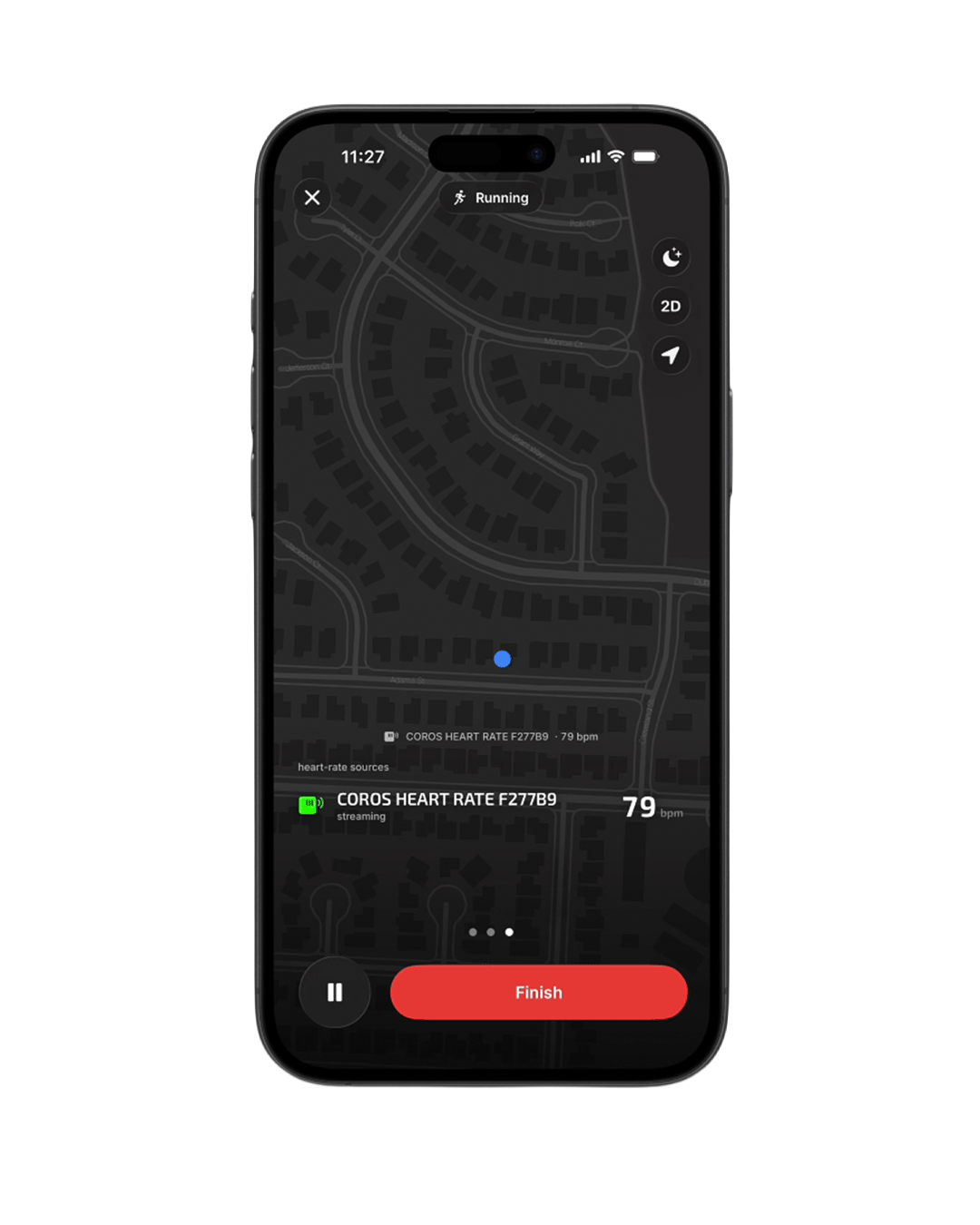
Step 4 · Start tracking
Tap Start to begin recording. Pause and resume whenever you need to, and end the session when you’re finished.
Step 5 · Review your session
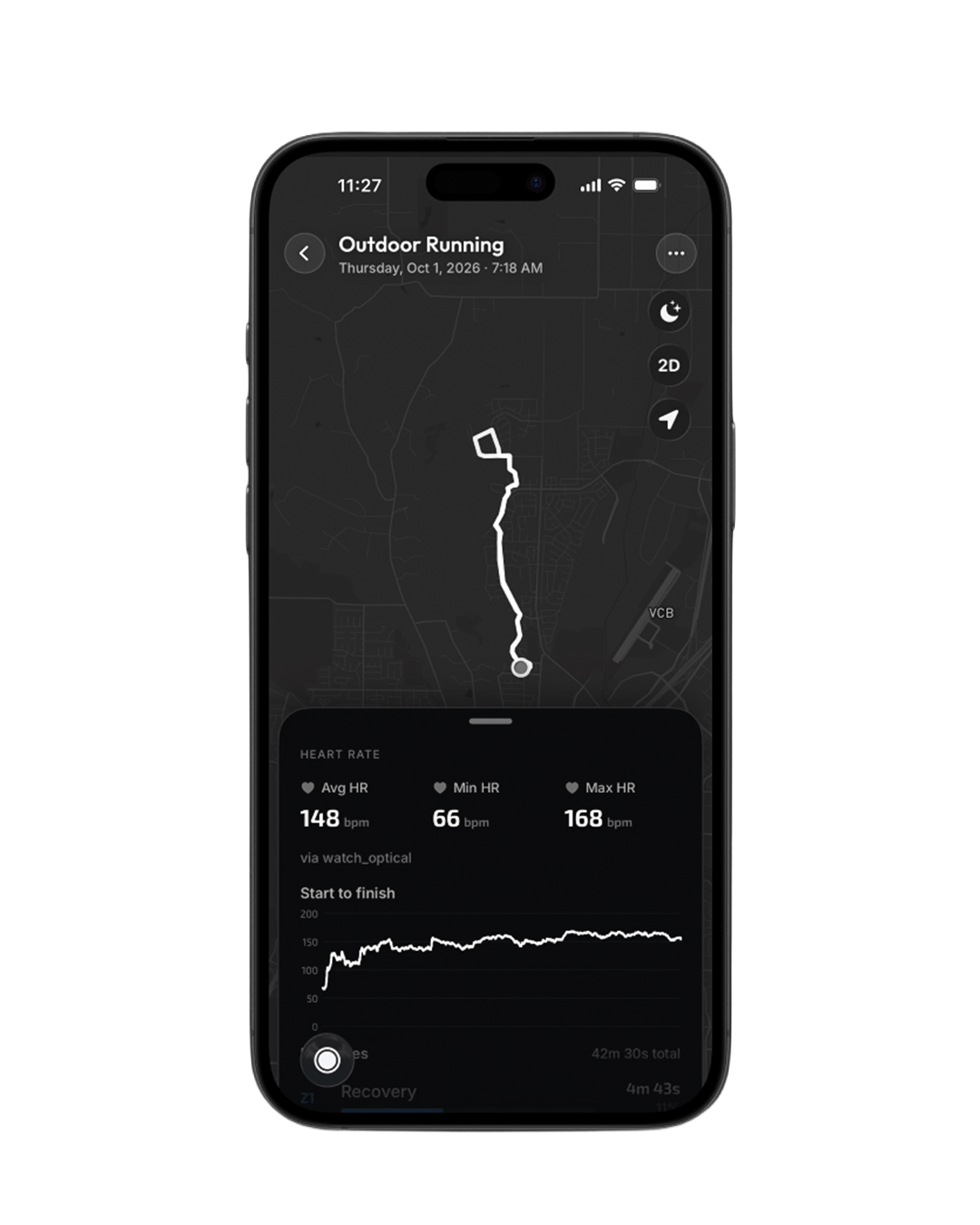
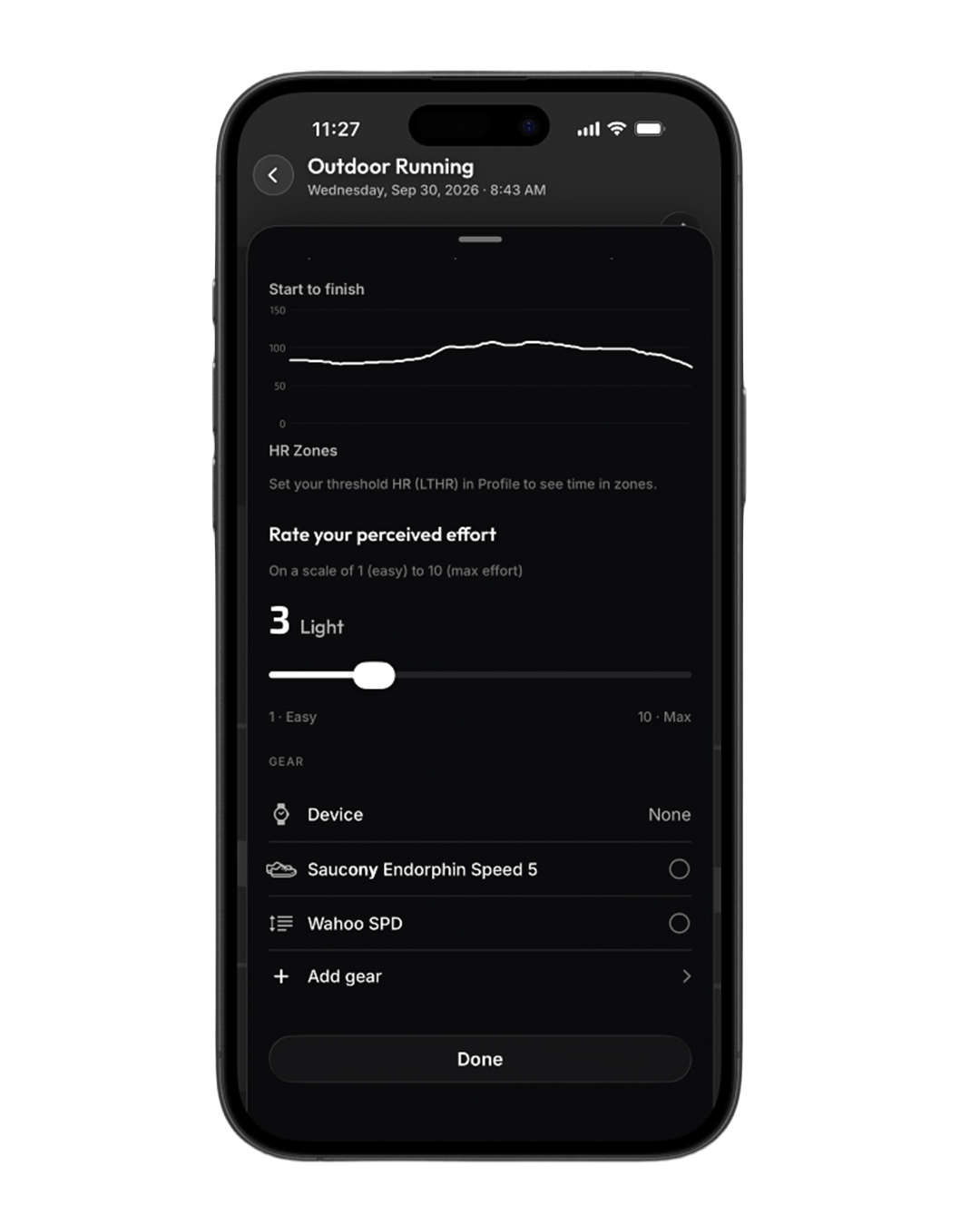
When you wrap up, Sequorr opens your session breakdown — your route, splits, and effort laid out section by section. Two things worth doing here:
- Rate your perceived effort on a scale of 1 (easy) to 10 (max).
- Add the gear you used — training shoes, a bike, whatever applies.
Want time-in-zones too? Set your threshold heart rate (LTHR) in Profile and Sequorr fills in your HR zones automatically.
Step 6 · Save your activity
To save and close, tap Done at the bottom of the breakdown screen. That’s it — your session is recorded.
Step 7 · Find it again anytime
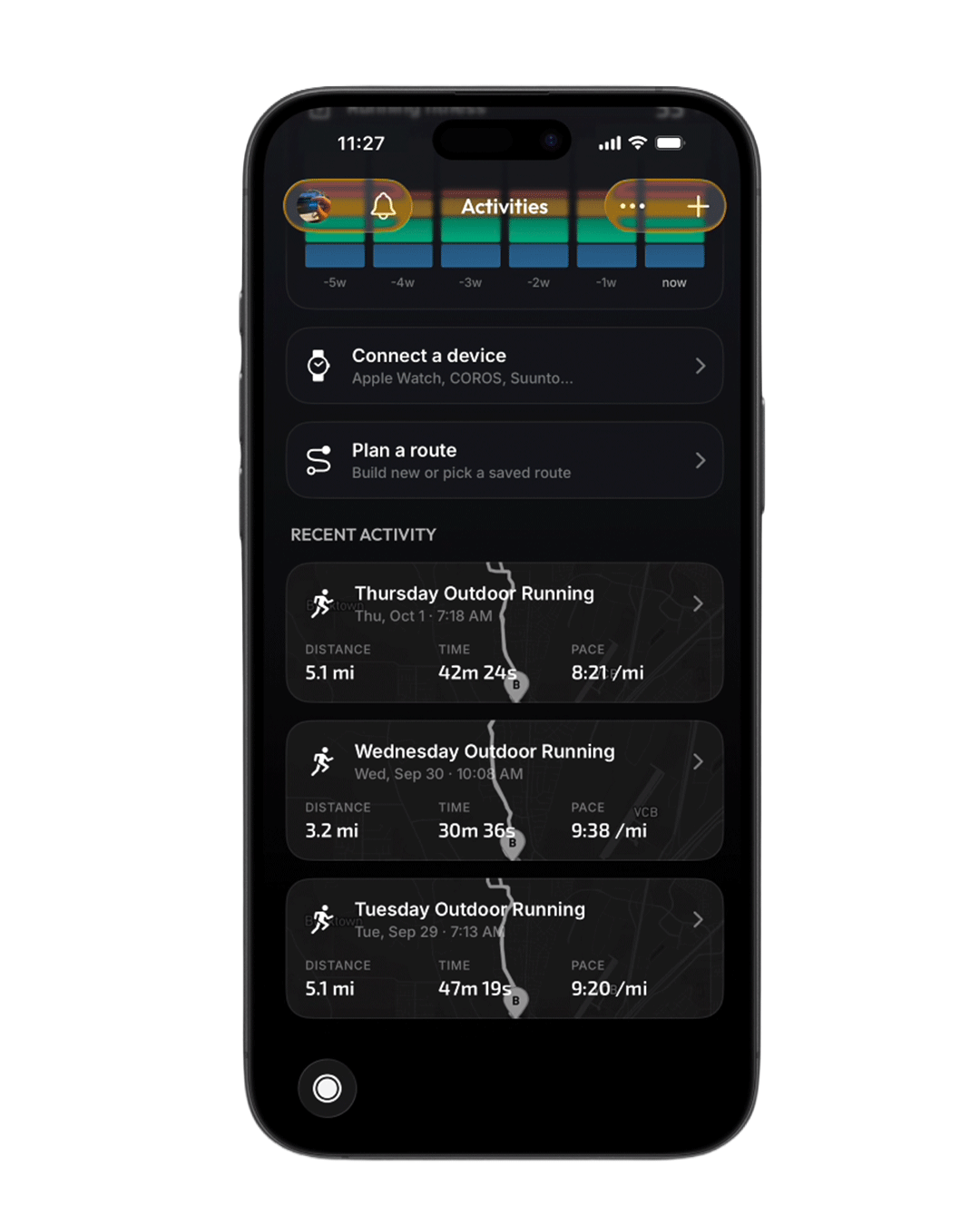
You’ll land back on the Activity screen. Scroll down to Recent Activity to reopen your session, or reach it from your Profile. You can revisit the full breakdown — and edit your perceived effort or gear — whenever you like.
You’ve just recorded your first activity on Sequorr. As sessions add up, watch your progress in the Running Fitness report — it turns your training into a clear picture of where your fitness is heading.
Questions? Email our team at [email protected] — we’re happy to help.